> ## Documentation Index
> Fetch the complete documentation index at: https://docs.pinata.cloud/llms.txt
> Use this file to discover all available pages before exploring further.
# Channels
> Let people talk to your agent on Telegram, Slack, or Discord
By default, the only way to talk to your agent is through the Pinata dashboard. Channels change that — connect Telegram, Slack, or Discord, and your agent shows up wherever you and your team already chat.
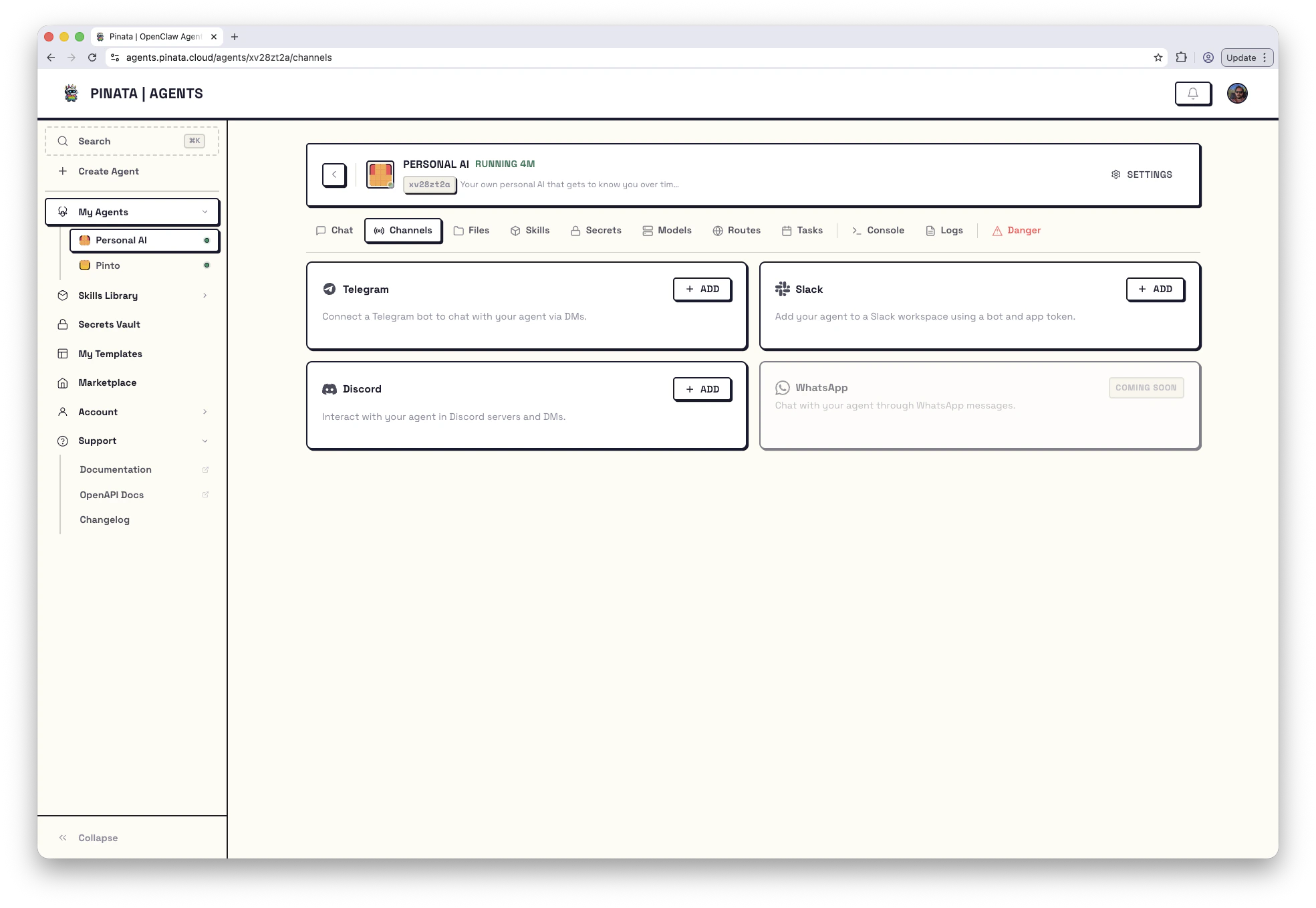
WhatsApp is on the roadmap; you'll see its card grayed out as **Coming Soon**.
 ## How it works
Open your agent → **Channels**. You'll see one card per platform.
* A card with **+ ADD** isn't connected yet. Click it to open the setup dialog.
* A card with **ENABLED** is already connected. The card shows a summary (the DM policy and a masked bot token), and a **RECONFIGURE** button reopens the dialog so you can update settings without losing the connection.
Setup is the same shape for every platform: grab a bot token from the platform, paste it into the dialog, save. Some platforms need an extra token or an OAuth invite to a workspace/server.
Once a channel is enabled, anyone who messages your bot on that platform is talking to your agent. Responses come back through the same channel.
## Telegram
This is the quickest. You need a bot token from Telegram's BotFather.
1. In Telegram, message [@BotFather](https://t.me/botfather)
2. Send `/newbot` and follow the prompts
3. Copy the bot token BotFather gives you
4. In Pinata: agent → **Channels** → **+ ADD** on the Telegram card
5. Paste the token and save
### Controlling who can DM your bot
The Telegram dialog has two access controls:
* **DM policy** — `open` (anyone can message) or `pairing` (users must be approved first)
* **Allow list** — a list of Telegram user IDs that are allowed to message
You can use either or both. Leave both at their defaults if you want anyone to be able to chat.
## Slack
Slack needs a custom app with the right permissions. It's a few more steps but everything happens once.
1. Go to [api.slack.com/apps](https://api.slack.com/apps) and create a new app
2. Enable **Socket Mode**
3. Create an **App-Level Token** with the `connections:write` scope
4. Under **OAuth & Permissions**, add these bot token scopes: `chat:write`, `im:write`, `im:history`, `im:read`, `users:read`, `app_mentions:read`
5. Install the app to your workspace
6. In Pinata: agent → **Channels** → **+ ADD** on the Slack card
7. Paste both tokens — bot token starts with `xoxb-`, app token starts with `xapp-`
Once connected, the bot responds to DMs and to `@mentions` in any channel it's been invited to.
## Discord
Same shape as Telegram — make a bot in Discord's developer portal, copy the token, paste it in.
1. Go to [discord.com/developers](https://discord.com/developers/applications) and create an application
2. Under **Bot**, click **Add Bot** and copy the token (you may need to reset it once to reveal it)
3. Under **OAuth2 → URL Generator**, check the `bot` scope and the permissions your bot needs
4. Open the generated URL to invite the bot to your server
5. In Pinata: agent → **Channels** → **+ ADD** on the Discord card
6. Paste the bot token and save
## Updating or removing a channel
* **Reconfigure** — click **RECONFIGURE** on an enabled channel. You can leave the token fields blank to keep the existing token while changing other settings.
* **Remove** — same dialog, **Remove** action. This deletes the channel config and restarts the agent's gateway.
Channels are available for chat-oriented engines such as OpenClaw and Hermes. Channel changes take effect after the gateway restarts; Configure and Remove handle that automatically. The create wizard can collect channel setup before deployment. If you're creating an agent via the API or CLI, pass a `channels` object on `POST /v0/agents` for engines that support create-time channel bootstrap — see [API → Create an agent](/agents/api#create-an-agent).
Bot tokens are sensitive. Keep them out of source control. They're stored encrypted on Pinata's side; treat them the same way locally.
## When it doesn't work
| Symptom | What's going on | What to do |
| ----------------------------------- | -------------------------------------------------- | -------------------------------------------------------------------------------- |
| Bot doesn't respond | Gateway didn't restart after configure | Open **Danger** → **Restart Gateway** |
| Slack works in DMs but not channels | Missing `app_mentions:read` scope | Reinstall the Slack app with the scopes above |
| Telegram users get no reply | `dmPolicy` is `pairing` and they aren't paired yet | Switch to `open`, or approve them via [Devices](/agents/devtools#device-pairing) |
| `403` when adding a channel | Plan limit or workspace permissions | Check your plan and workspace role |
If none of these match, check [Logs](/agents/logs) for entries from `gateway/reload` and the channel name, or walk through [Troubleshooting](/agents/troubleshooting).
## How it works
Open your agent → **Channels**. You'll see one card per platform.
* A card with **+ ADD** isn't connected yet. Click it to open the setup dialog.
* A card with **ENABLED** is already connected. The card shows a summary (the DM policy and a masked bot token), and a **RECONFIGURE** button reopens the dialog so you can update settings without losing the connection.
Setup is the same shape for every platform: grab a bot token from the platform, paste it into the dialog, save. Some platforms need an extra token or an OAuth invite to a workspace/server.
Once a channel is enabled, anyone who messages your bot on that platform is talking to your agent. Responses come back through the same channel.
## Telegram
This is the quickest. You need a bot token from Telegram's BotFather.
1. In Telegram, message [@BotFather](https://t.me/botfather)
2. Send `/newbot` and follow the prompts
3. Copy the bot token BotFather gives you
4. In Pinata: agent → **Channels** → **+ ADD** on the Telegram card
5. Paste the token and save
### Controlling who can DM your bot
The Telegram dialog has two access controls:
* **DM policy** — `open` (anyone can message) or `pairing` (users must be approved first)
* **Allow list** — a list of Telegram user IDs that are allowed to message
You can use either or both. Leave both at their defaults if you want anyone to be able to chat.
## Slack
Slack needs a custom app with the right permissions. It's a few more steps but everything happens once.
1. Go to [api.slack.com/apps](https://api.slack.com/apps) and create a new app
2. Enable **Socket Mode**
3. Create an **App-Level Token** with the `connections:write` scope
4. Under **OAuth & Permissions**, add these bot token scopes: `chat:write`, `im:write`, `im:history`, `im:read`, `users:read`, `app_mentions:read`
5. Install the app to your workspace
6. In Pinata: agent → **Channels** → **+ ADD** on the Slack card
7. Paste both tokens — bot token starts with `xoxb-`, app token starts with `xapp-`
Once connected, the bot responds to DMs and to `@mentions` in any channel it's been invited to.
## Discord
Same shape as Telegram — make a bot in Discord's developer portal, copy the token, paste it in.
1. Go to [discord.com/developers](https://discord.com/developers/applications) and create an application
2. Under **Bot**, click **Add Bot** and copy the token (you may need to reset it once to reveal it)
3. Under **OAuth2 → URL Generator**, check the `bot` scope and the permissions your bot needs
4. Open the generated URL to invite the bot to your server
5. In Pinata: agent → **Channels** → **+ ADD** on the Discord card
6. Paste the bot token and save
## Updating or removing a channel
* **Reconfigure** — click **RECONFIGURE** on an enabled channel. You can leave the token fields blank to keep the existing token while changing other settings.
* **Remove** — same dialog, **Remove** action. This deletes the channel config and restarts the agent's gateway.
Channels are available for chat-oriented engines such as OpenClaw and Hermes. Channel changes take effect after the gateway restarts; Configure and Remove handle that automatically. The create wizard can collect channel setup before deployment. If you're creating an agent via the API or CLI, pass a `channels` object on `POST /v0/agents` for engines that support create-time channel bootstrap — see [API → Create an agent](/agents/api#create-an-agent).
Bot tokens are sensitive. Keep them out of source control. They're stored encrypted on Pinata's side; treat them the same way locally.
## When it doesn't work
| Symptom | What's going on | What to do |
| ----------------------------------- | -------------------------------------------------- | -------------------------------------------------------------------------------- |
| Bot doesn't respond | Gateway didn't restart after configure | Open **Danger** → **Restart Gateway** |
| Slack works in DMs but not channels | Missing `app_mentions:read` scope | Reinstall the Slack app with the scopes above |
| Telegram users get no reply | `dmPolicy` is `pairing` and they aren't paired yet | Switch to `open`, or approve them via [Devices](/agents/devtools#device-pairing) |
| `403` when adding a channel | Plan limit or workspace permissions | Check your plan and workspace role |
If none of these match, check [Logs](/agents/logs) for entries from `gateway/reload` and the channel name, or walk through [Troubleshooting](/agents/troubleshooting).