> ## Documentation Index
> Fetch the complete documentation index at: https://docs.pinata.cloud/llms.txt
> Use this file to discover all available pages before exploring further.
# Models
> Pick which AI models this agent can use
Each agent has its own list of allowed models, grouped by provider. The default model is what the agent reaches for when nothing else says otherwise; you can also swap models in the middle of a conversation if you want a faster (or smarter) one for a specific turn.
 ## What you see
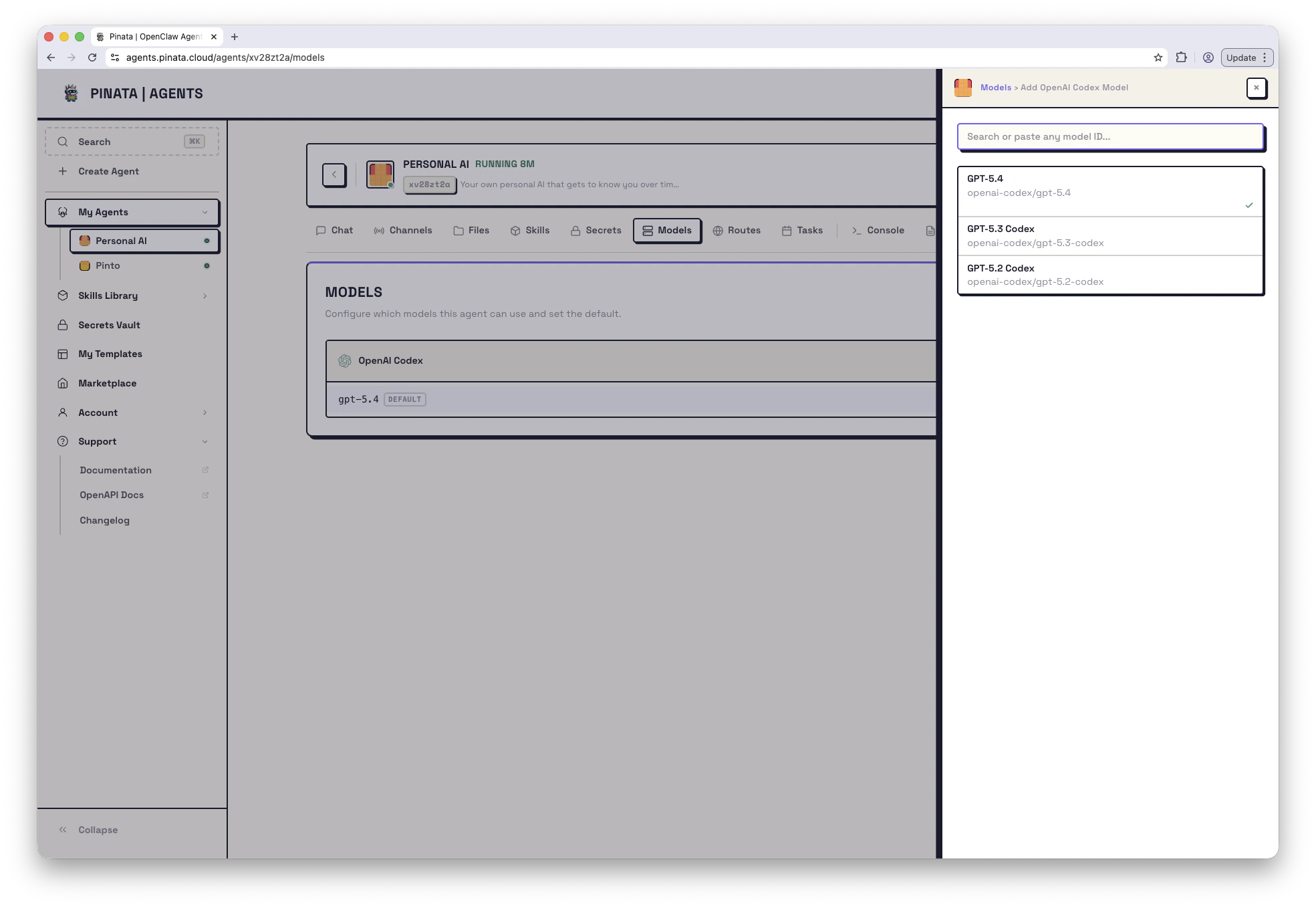
Open your agent → **Models**. The page lists each connected provider as a separate section. Only providers you've connected in the [Secrets Vault](/agents/secrets) show up here — if you don't see OpenAI, for example, it's because you haven't connected an OpenAI key.
### Free-tier agents
If the agent was created on the **Free tier** (no provider key), the Models page shows a single "Running on Pinata's free tier" state instead of provider sections. The agent uses a free, rate-limited model from OpenRouter's free pool (`openrouter/free`); there's nothing to configure. Add your own provider key in Secrets — the **Add a provider key →** link takes you there — and the full provider/model UI appears for this agent.
Inside each provider section:
* One row per model that's currently enabled
* A **DEFAULT** badge marks the agent's default model
* An **×** on a row removes that model from this agent
* **+ ADD** at the top right of each section lets you enable more models from that provider
## Enable a model
Click **+ ADD** in the provider section and pick a model from the list. It's now available to this agent — you can call it from chat or set it as default. Removing one with **×** doesn't disconnect the provider, it just narrows the menu.
## Set the default
The default is what gets used when you don't specify a model. Click a model row to set it as default; the **DEFAULT** badge moves.
## Switch models mid-conversation
On the [Chat](/agents/chat) tab, the **MODEL** dropdown next to the message input lets you pick a model for the next turn. You'd typically reach for this to:
* Use a fast/cheap model for routine questions
* Bump up to a more capable model for a hard one
* Compare answers from two models on the same prompt
Each response is tagged with the model that produced it, so the conversation stays readable when you switch.
## What models look like in configs
When you reference a model in code, in `manifest.json`, or in a task payload, the convention is `provider/model`:
```text theme={null}
anthropic/claude-sonnet-4-6
openrouter/tencent/hy3-preview
openai/gpt-5.4
```
The provider prefix tells the agent engine which connected provider to use. If you give it a model that isn't enabled on this agent, the request falls back to the default.
Provider availability and default enabled models can vary by engine. For example, fresh OpenClaw and Hermes agents can start with different Anthropic defaults.
## What's available today
The exact list updates as providers ship. A current snapshot:
* **Anthropic** — `claude-opus-4-6`, `claude-sonnet-4-6`, `claude-haiku-4-5`
* **OpenAI Codex** (subscription) — `gpt-5.4`
* **OpenRouter** — `auto` (lets OpenRouter pick), plus any specific model on the platform (e.g. `tencent/hy3-preview`)
* **Free tier** — `openrouter/free` (shared pool, rate-limited, no key needed)
* **Venice / Pinata / Custom** — whatever the provider exposes
Provider availability also varies by engine — for example, Super Builder agents offer a narrower provider list at creation than OpenClaw agents.
When you select `auto` on OpenRouter, OpenRouter picks the underlying model for each request. Handy if you don't want to micromanage which model handles what.
## What you see
Open your agent → **Models**. The page lists each connected provider as a separate section. Only providers you've connected in the [Secrets Vault](/agents/secrets) show up here — if you don't see OpenAI, for example, it's because you haven't connected an OpenAI key.
### Free-tier agents
If the agent was created on the **Free tier** (no provider key), the Models page shows a single "Running on Pinata's free tier" state instead of provider sections. The agent uses a free, rate-limited model from OpenRouter's free pool (`openrouter/free`); there's nothing to configure. Add your own provider key in Secrets — the **Add a provider key →** link takes you there — and the full provider/model UI appears for this agent.
Inside each provider section:
* One row per model that's currently enabled
* A **DEFAULT** badge marks the agent's default model
* An **×** on a row removes that model from this agent
* **+ ADD** at the top right of each section lets you enable more models from that provider
## Enable a model
Click **+ ADD** in the provider section and pick a model from the list. It's now available to this agent — you can call it from chat or set it as default. Removing one with **×** doesn't disconnect the provider, it just narrows the menu.
## Set the default
The default is what gets used when you don't specify a model. Click a model row to set it as default; the **DEFAULT** badge moves.
## Switch models mid-conversation
On the [Chat](/agents/chat) tab, the **MODEL** dropdown next to the message input lets you pick a model for the next turn. You'd typically reach for this to:
* Use a fast/cheap model for routine questions
* Bump up to a more capable model for a hard one
* Compare answers from two models on the same prompt
Each response is tagged with the model that produced it, so the conversation stays readable when you switch.
## What models look like in configs
When you reference a model in code, in `manifest.json`, or in a task payload, the convention is `provider/model`:
```text theme={null}
anthropic/claude-sonnet-4-6
openrouter/tencent/hy3-preview
openai/gpt-5.4
```
The provider prefix tells the agent engine which connected provider to use. If you give it a model that isn't enabled on this agent, the request falls back to the default.
Provider availability and default enabled models can vary by engine. For example, fresh OpenClaw and Hermes agents can start with different Anthropic defaults.
## What's available today
The exact list updates as providers ship. A current snapshot:
* **Anthropic** — `claude-opus-4-6`, `claude-sonnet-4-6`, `claude-haiku-4-5`
* **OpenAI Codex** (subscription) — `gpt-5.4`
* **OpenRouter** — `auto` (lets OpenRouter pick), plus any specific model on the platform (e.g. `tencent/hy3-preview`)
* **Free tier** — `openrouter/free` (shared pool, rate-limited, no key needed)
* **Venice / Pinata / Custom** — whatever the provider exposes
Provider availability also varies by engine — for example, Super Builder agents offer a narrower provider list at creation than OpenClaw agents.
When you select `auto` on OpenRouter, OpenRouter picks the underlying model for each request. Handy if you don't want to micromanage which model handles what.