> ## Documentation Index
> Fetch the complete documentation index at: https://docs.pinata.cloud/llms.txt
> Use this file to discover all available pages before exploring further.
# Retrieving Files
Gateways are Pinata's tool to deliver your content with speed and security. They're similar to CDNs but with way more features. When you create a Pinata account, you'll automatically have a Gateway created for you! To see it, simply visit the [Gateways Page](https://app.pinata.cloud/gateway).
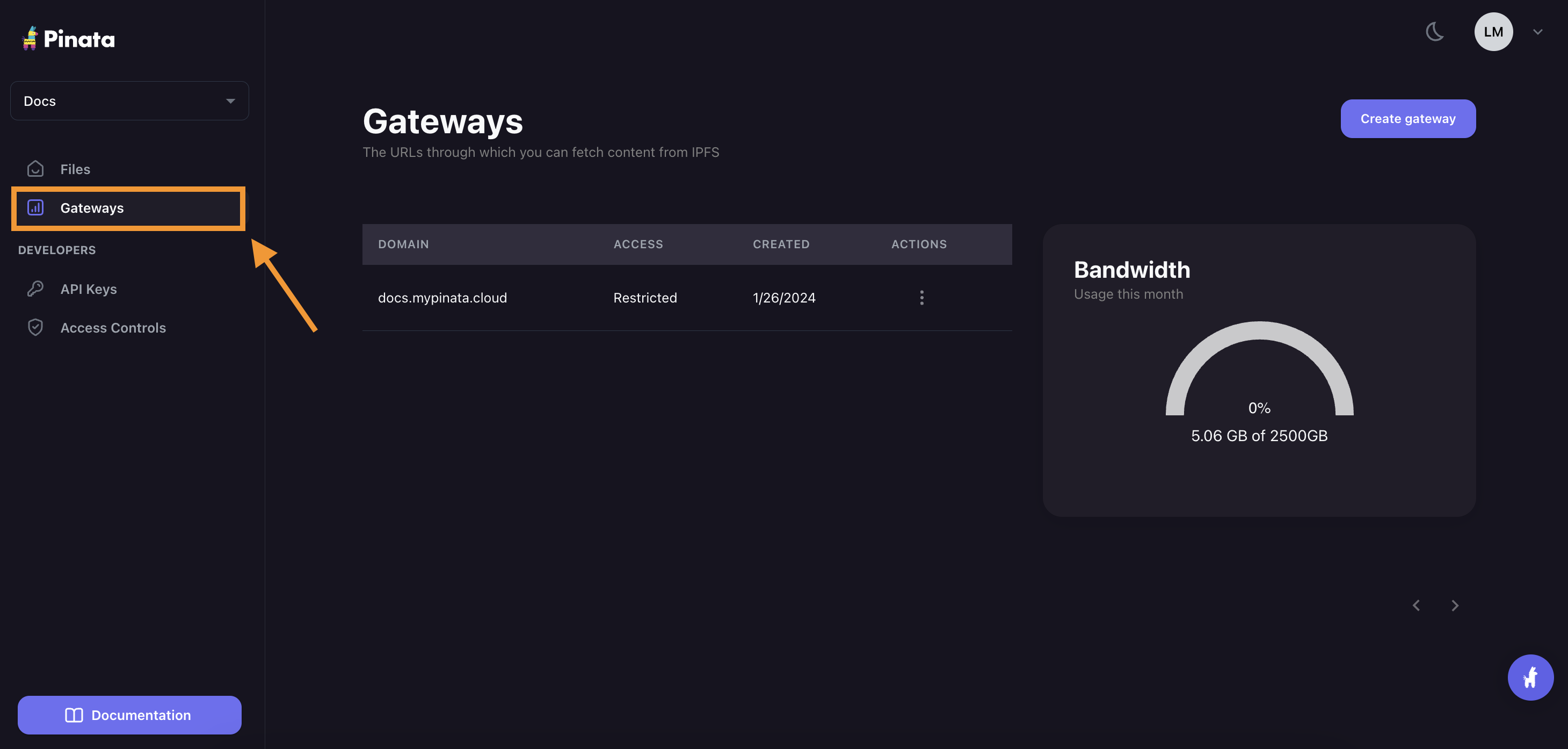 The gateway domains are randomly generated and might look something like this:
```
aquamarine-casual-tarantula-177.mypinata.cloud
```
## Retrieving Public Files
If you uploaded or added files to Public IPFS then you can access them with the methods mentioned previously, or just by appending the `cid` to the `gateway` url like so:
```
https://example-gateway.mypinata.cloud/ipfs/{cid}
```
Since these files are public there is no need create a temporary url. At this point you can also use some handy queries such as `?filename=image.png`, `?download=true`.
By default your gateway will only be able to fetch the files that are pinned to your account. If you want to open your gateway to access any file on IPFS check out our guide for [Access Controls](/gateways/gateway-access-controls).
One of the simplest ways to fetch content is through the [get](/sdk/gateways/private/get) method in the [SDK](/sdk). All content is referenced by the `cid`, a special identifier given to each file based on the cotnent of that file.
```typescript theme={null}
import { PinataSDK } from "pinata";
const pinata = new PinataSDK({
pinataJwt: process.env.PINATA_JWT!,
pinataGateway: "example-gateway.mypinata.cloud",
});
const { data, contentType } = await pinata.gateways.public.get(
"bafkreib4pqtikzdjlj4zigobmd63lig7u6oxlug24snlr6atjlmlza45dq"
)
```
You can also use the SDK to provide a URL for your file using the `pinataGateway` in the config.
```typescript theme={null}
import { PinataSDK } from "pinata";
const pinata = new PinataSDK({
pinataJwt: process.env.PINATA_JWT!,
pinataGateway: "example-gateway.mypinata.cloud",
});
const url = await pinata.gateways.public.convert(
"bafkreib4pqtikzdjlj4zigobmd63lig7u6oxlug24snlr6atjlmlza45dq"
)
```
### Image Optimizations
With public files you can simply append the [Image Optimizations](/gateways/image-optimizations) queries which would look something like this:
```
https://example-gateway.mypinata.cloud/files/{cid}?img-width=500&img-height=500
```
## Adding a Custom Domain
Pinata also allows you to create a custom domain for your Dedicated Gateway. Simply visit the [Gateways Page](https://app.pinata.cloud/gateway), click the menu button on the right side of your gateway, then click Add Custom Domain. You'll need to own the domain you want to use. When you enter your domain, you will be prompted to enter DNS information through your registrar.
## Retrieving Private Files
All content uploaded with Private IPFS is by default private, and there are a few ways you can view it. One of the simplest ways to fetch content is through the [get](/sdk/gateways/private/get) method in the [SDK](/sdk). All content is referenced by the `cid`, a special identifier given to each file based on the cotnent of that file.
```typescript theme={null}
import { PinataSDK } from "pinata";
const pinata = new PinataSDK({
pinataJwt: process.env.PINATA_JWT!,
pinataGateway: "example-gateway.mypinata.cloud",
});
const { data, contentType } = await pinata.gateways.private.get(
"bafkreib4pqtikzdjlj4zigobmd63lig7u6oxlug24snlr6atjlmlza45dq"
)
```
Under the hood this method generates a 30 second access link to access the content with. Alternatively you can also create an access link that can be used to access the content for a specified limited amount of time.
```typescript SDK {8-11} theme={null}
import { PinataSDK } from "pinata";
const pinata = new PinataSDK({
pinataJwt: process.env.PINATA_JWT!,
pinataGateway: "example-gateway.mypinata.cloud",
});
const url = await pinata.gateways.private.createAccessLink({
cid: "bafkreib4pqtikzdjlj4zigobmd63lig7u6oxlug24snlr6atjlmlza45dq",
expires: 30, // Number of seconds link is valid for
});
```
```typescript API {5-10} theme={null}
const JWT = "YOUR_PINATA_JWT";
async function url() {
try {
const payload = JSON.stringify({
url: "https://example.mypinata.cloud/files/bafybeifq444z4b7yqzcyz4a5gspb2rpyfcdxp3mrfpigmllh52ld5tyzwm",
expires: 500000,
date: 1724875300,
method: "GET"
})
const request = await fetch(
`https://api.pinata.cloud/v3/files/download_link`,
{
method: "POST",
headers: {
"Content-Type": "application/json",
Authorization: `Bearer ${JWT}`,
},
body: payload
});
const response = await request.json();
console.log(response);
} catch (error) {
console.log(error);
}
}
```
### Image Optmizations
In order ot use [Image Optmizations](/gateways/image-optimizations) with private files the query parameters must be part of the request of getting a signed url.
```typescript SDK {3-7} theme={null}
const data = await pinata.gateways.private
.createSignedURL("bafkreih5aznjvttude6c3wbvqeebb6rlx5wkbzyppv7garjiubll2ceym4")
.optimizeImage({
width: 500,
height: 500,
format: "webp"
})
```
```typescript API {6} theme={null}
const JWT = "YOUR_PINATA_JWT";
async function url() {
try {
const payload = JSON.stringify({
url: "https://example.mypinata.cloud/files/bafybeifq444z4b7yqzcyz4a5gspb2rpyfcdxp3mrfpigmllh52ld5tyzwm?img-width=500&img-height=500&img-format=webp",
expires: 500000,
date: 1724875300,
method: "GET"
})
const request = await fetch(
`https://api.pinata.cloud/v3/files/download_link`,
{
method: "POST",
headers: {
"Content-Type": "application/json",
Authorization: `Bearer ${JWT}`,
},
body: payload
});
const response = await request.json();
console.log(response);
} catch (error) {
console.log(error);
}
}
```
The gateway domains are randomly generated and might look something like this:
```
aquamarine-casual-tarantula-177.mypinata.cloud
```
## Retrieving Public Files
If you uploaded or added files to Public IPFS then you can access them with the methods mentioned previously, or just by appending the `cid` to the `gateway` url like so:
```
https://example-gateway.mypinata.cloud/ipfs/{cid}
```
Since these files are public there is no need create a temporary url. At this point you can also use some handy queries such as `?filename=image.png`, `?download=true`.
By default your gateway will only be able to fetch the files that are pinned to your account. If you want to open your gateway to access any file on IPFS check out our guide for [Access Controls](/gateways/gateway-access-controls).
One of the simplest ways to fetch content is through the [get](/sdk/gateways/private/get) method in the [SDK](/sdk). All content is referenced by the `cid`, a special identifier given to each file based on the cotnent of that file.
```typescript theme={null}
import { PinataSDK } from "pinata";
const pinata = new PinataSDK({
pinataJwt: process.env.PINATA_JWT!,
pinataGateway: "example-gateway.mypinata.cloud",
});
const { data, contentType } = await pinata.gateways.public.get(
"bafkreib4pqtikzdjlj4zigobmd63lig7u6oxlug24snlr6atjlmlza45dq"
)
```
You can also use the SDK to provide a URL for your file using the `pinataGateway` in the config.
```typescript theme={null}
import { PinataSDK } from "pinata";
const pinata = new PinataSDK({
pinataJwt: process.env.PINATA_JWT!,
pinataGateway: "example-gateway.mypinata.cloud",
});
const url = await pinata.gateways.public.convert(
"bafkreib4pqtikzdjlj4zigobmd63lig7u6oxlug24snlr6atjlmlza45dq"
)
```
### Image Optimizations
With public files you can simply append the [Image Optimizations](/gateways/image-optimizations) queries which would look something like this:
```
https://example-gateway.mypinata.cloud/files/{cid}?img-width=500&img-height=500
```
## Adding a Custom Domain
Pinata also allows you to create a custom domain for your Dedicated Gateway. Simply visit the [Gateways Page](https://app.pinata.cloud/gateway), click the menu button on the right side of your gateway, then click Add Custom Domain. You'll need to own the domain you want to use. When you enter your domain, you will be prompted to enter DNS information through your registrar.
## Retrieving Private Files
All content uploaded with Private IPFS is by default private, and there are a few ways you can view it. One of the simplest ways to fetch content is through the [get](/sdk/gateways/private/get) method in the [SDK](/sdk). All content is referenced by the `cid`, a special identifier given to each file based on the cotnent of that file.
```typescript theme={null}
import { PinataSDK } from "pinata";
const pinata = new PinataSDK({
pinataJwt: process.env.PINATA_JWT!,
pinataGateway: "example-gateway.mypinata.cloud",
});
const { data, contentType } = await pinata.gateways.private.get(
"bafkreib4pqtikzdjlj4zigobmd63lig7u6oxlug24snlr6atjlmlza45dq"
)
```
Under the hood this method generates a 30 second access link to access the content with. Alternatively you can also create an access link that can be used to access the content for a specified limited amount of time.
```typescript SDK {8-11} theme={null}
import { PinataSDK } from "pinata";
const pinata = new PinataSDK({
pinataJwt: process.env.PINATA_JWT!,
pinataGateway: "example-gateway.mypinata.cloud",
});
const url = await pinata.gateways.private.createAccessLink({
cid: "bafkreib4pqtikzdjlj4zigobmd63lig7u6oxlug24snlr6atjlmlza45dq",
expires: 30, // Number of seconds link is valid for
});
```
```typescript API {5-10} theme={null}
const JWT = "YOUR_PINATA_JWT";
async function url() {
try {
const payload = JSON.stringify({
url: "https://example.mypinata.cloud/files/bafybeifq444z4b7yqzcyz4a5gspb2rpyfcdxp3mrfpigmllh52ld5tyzwm",
expires: 500000,
date: 1724875300,
method: "GET"
})
const request = await fetch(
`https://api.pinata.cloud/v3/files/download_link`,
{
method: "POST",
headers: {
"Content-Type": "application/json",
Authorization: `Bearer ${JWT}`,
},
body: payload
});
const response = await request.json();
console.log(response);
} catch (error) {
console.log(error);
}
}
```
### Image Optmizations
In order ot use [Image Optmizations](/gateways/image-optimizations) with private files the query parameters must be part of the request of getting a signed url.
```typescript SDK {3-7} theme={null}
const data = await pinata.gateways.private
.createSignedURL("bafkreih5aznjvttude6c3wbvqeebb6rlx5wkbzyppv7garjiubll2ceym4")
.optimizeImage({
width: 500,
height: 500,
format: "webp"
})
```
```typescript API {6} theme={null}
const JWT = "YOUR_PINATA_JWT";
async function url() {
try {
const payload = JSON.stringify({
url: "https://example.mypinata.cloud/files/bafybeifq444z4b7yqzcyz4a5gspb2rpyfcdxp3mrfpigmllh52ld5tyzwm?img-width=500&img-height=500&img-format=webp",
expires: 500000,
date: 1724875300,
method: "GET"
})
const request = await fetch(
`https://api.pinata.cloud/v3/files/download_link`,
{
method: "POST",
headers: {
"Content-Type": "application/json",
Authorization: `Bearer ${JWT}`,
},
body: payload
});
const response = await request.json();
console.log(response);
} catch (error) {
console.log(error);
}
}
```