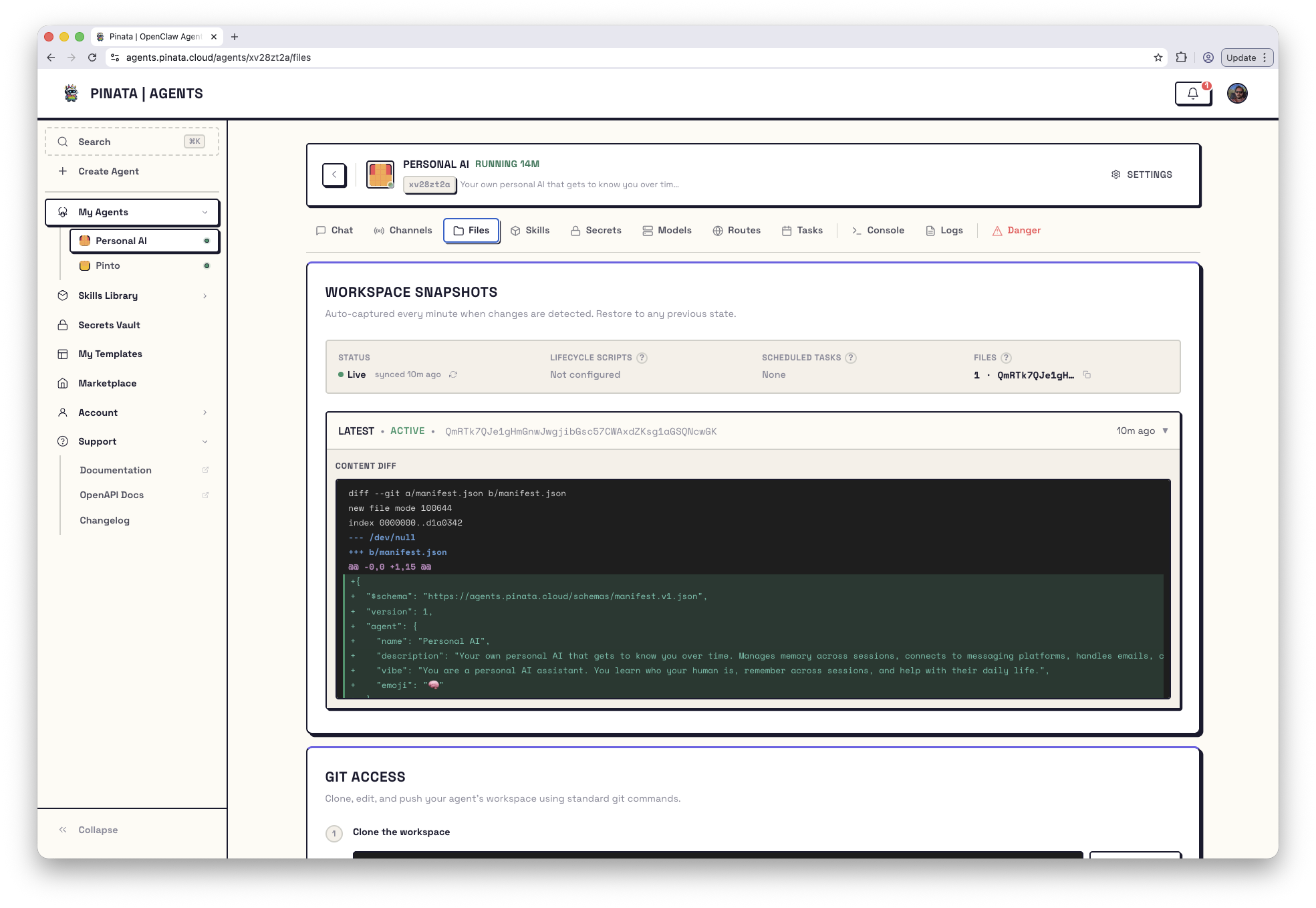
The Files tab gives you four things: a snapshot history of the agent’s workspace, content diffs so you can see what changed between snapshots, a file browser for the agent’s container, and a git URL so you can clone the workspace locally and edit it like any other repo.
Workspace Snapshots
Every minute or so, when the workspace has changed, Pinata captures a snapshot. Each snapshot is the entire workspace pinned to IPFS as a single CID — your full file tree at that point in time, immutable.
The summary card at the top shows:
- Status —
Live, plus how long ago the workspace last synced
- Lifecycle Scripts — whether
build and start are configured (and their run state if they are)
- Scheduled Tasks — whether any tasks are set up
- Files — total file count and the current snapshot CID
Below the summary is the snapshot list — newest at the top, labeled LATEST, V9, V8, and so on. Click any version to expand its Content Diff — a file-by-file view of what changed since the previous snapshot, rendered as either a unified or side-by-side diff.
Common file you’ll see diffs for: manifest.json. See the manifest reference for what every field means.
Restore an older snapshot
If a recent change broke something, you can roll back.
- Find the snapshot you want in the list
- Open it
- Restore
Under the hood this runs a git --hard reset to the commit associated with that snapshot. The current workspace is replaced — anything that hadn’t been captured into a snapshot yet is lost.
Restore is destructive. Snapshot the current state first if you might want to come back to it.
Force a snapshot now
Snapshots run on their own, but you can trigger one immediately:
The same endpoint with GET returns sync status — whether storage is configured, when it last synced, and a human-readable message.
Workspace Files — browse the container
Below the snapshot list, the Workspace Files panel is a live file browser for the agent’s pod filesystem — not just the workspace, the whole container.
- Navigate — click a folder to enter it, use the breadcrumb or ← Up to go back, Workspace to jump straight to the workspace root, Refresh to re-read the current directory
- View a file — click it. Text and markdown files preview inline with size and MIME type; binary files offer a Download instead
- Upload — drop files onto the listing or click Upload to put files into the current directory
Handy for checking what an agent actually wrote, reading logs in place (e.g. /home/hermes/data/logs/ on a Hermes agent), or dropping in a config file without opening the Console.
Editing the workspace locally
The workspace is a git repo, served by Pinata. Clone, edit in your IDE, commit, push.
Click Copy with Token in the Files tab and you get a URL with the gateway token already baked in as HTTP Basic auth — no credential setup, just clone and go.
Pushing changes
When you push, the server commits any pending agent-side changes first, then applies your push on top. That means your push automatically picks up anything the agent has been writing.
After a push, the agent’s build script (if you’ve set one) runs automatically. Check the Lifecycle Scripts row to watch its status. Details: Manifest → Scripts.
Pulling agent-side changes
Your agent writes to the same workspace as it works. To sync that locally:
Persistent credentials
Copying the tokened URL every time gets old. Expand Setup Persistent Credentials in the Files tab and follow the instructions — git stores the credentials, future operations authenticate automatically.
Reading or uploading files programmatically
Two endpoints, both on the agent’s subdomain:
GET /v0/agents/{agentId}/files?path=<path> — read any file inside the containerPOST /v0/agents/{agentId}/files/upload — upload a base64-encoded file into <workspace>/uploads/
Both require auth (Pinata JWT or gateway token). See API → Files.